- Created by yannickglt
- 🗓 Last Updated: 17/03/21 22:10:13
- 🌟 Stars on GitHub: 332
- Please consider supporting the creator by Starring or Sponsoring them on GitHub!
- Get Latest Release
- Get Source Code
From their README
alfred-slack

Open conversation with a contact in Slack
To start
-
Download and install Slack.alfredworkflow
-
Create a custom app for your team following these steps.
-
Once you have your client ID and Secret, visit the address https://yannickglt.github.io/alfred-slack/ to generate a unique code for authentication in the Workflow.
- Enter your team name in the first field and your client ID in the second one, then click on the button "Generate code".

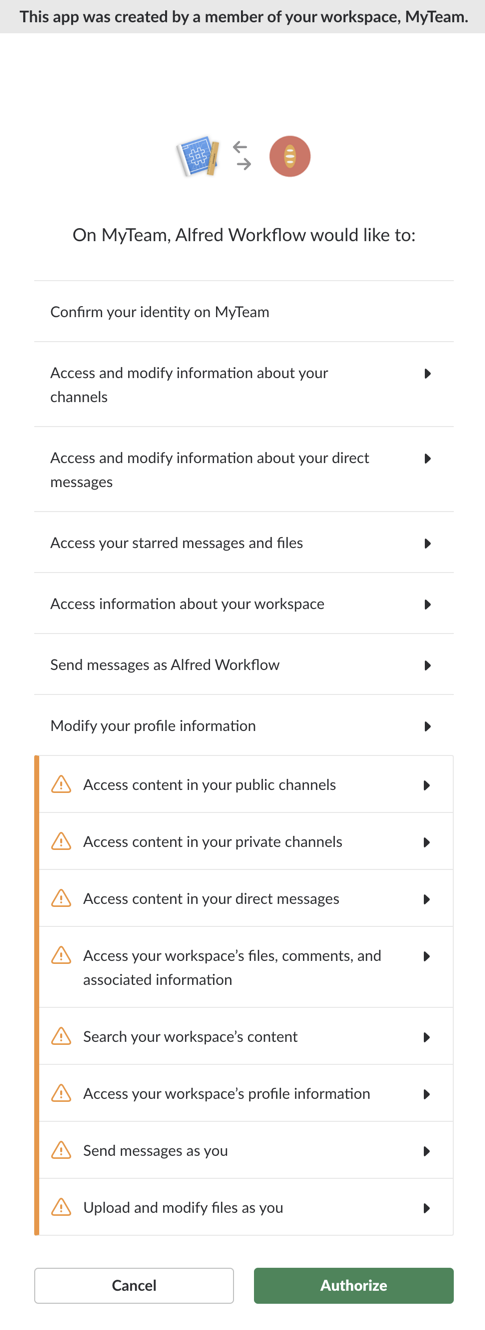
- Authorize the app to access your Slack team with the rights below.
- Copy your generated unique code in your clipboard.

-
Launch the slack workflow with the parameter
--add-clientfollowed by the concatenation of the generated unique code and client Secret separated by a colon (e.g.:UNIQUE_CODE:CLIENT_SECRET). You can add several clients if you want to collaborate with several teams. You just need to repeat the two last steps.Example:
slack --add-client 1234567890.123456789012|1234567890.123456789012.abcdef1234:1234567890abcdef1234567890abcdef -
Launch the cache refresh by taping the command
--refresh.Example:
slack --refreshThe cache refresh may take up to several minutes depending on your organization size.
-
Enjoy!
Note: install the Packal Updater workflow if you want automatic updates.
How to use
-
List channels or groups to open in the Slack app:
slack
-
List users to open in the Slack app:
slack
-
Open a channel, group or user in the Slack app:
slack
-
List messages from a specific channel, group or user:
slack
-
Send a message to a channel, group or user:
slack
-
Mark all channels as read
slack --mark -
List the files within the team
slack --files -
List the items starred
slack --stars -
Search both messages and files
slack --search -
Set the user presence (either active or away)
slack --presence -
Set the custom status
slack --status
Create an app for your team
-
Go to the URL https://api.slack.com/apps/new and click on the button
Create a Slack app.
-
Give it an app name e.g.: "Alfred Workflow", select your team in the list and click on the button
Create App.
-
Note the client ID and Secret!

⚠ Never share the client secret on the web or on public repository
-
Go to the section OAuth & Permissions (under the Features category), add the two redirect URLs
http://yannickglt.github.io/alfred-slack/andhttps://yannickglt.github.io/alfred-slack/and click onSave URLs.